Free • No limits • No visible quality loss
Compress images without losing quality
Cut image weight by up to 98%, change dimensions and convert to WebP, AVIF, JPEG or PNG. Make your pages load faster.
- Processed locally in your browser
- No account, no app to install
Drag images here or pick them from your device
JPG · PNG · WebP · AVIF - no imposed limit on how many
You can also paste a screenshot with Ctrl/⌘ + V
How it works
From source image to finished file
The whole process runs directly in your browser and needs no account.
Add images
Drag files in, pick them from your device or paste a screenshot with Ctrl/⌘ + V. You can process many images at once.
Choose settings
Set the target size and format. Every change reprocesses the images automatically.
Download results
Grab a single image or save every finished file in one ZIP archive. The tool adds no watermarks.
Practical guidelines
How to prepare images for the web
Dimensions and file sizes depend on the project, but the values below are a solid starting point for common cases.
| Where on the page | Width | Format | File size | veoimg preset |
|---|---|---|---|---|
| Hero section or full-screen background | 1920–2560 px | WebP or AVIF | up to 300 KB | Full HD / 4K |
| Image inside an article or body copy | 1200 px | WebP | up to 150 KB | Large |
| Product card, grid, half-width | 800 px | WebP | up to 80 KB | Medium |
| Thumbnail, avatar or author photo | 400 px | WebP | up to 30 KB | Small |
| Logos, icons, simple illustrations | any | SVG | up to 10 KB | - (keep it as SVG) |
Match dimensions to where the image is shown
Do not publish a 6000 × 4000 px photo if it will be displayed far smaller. The browser still has to download the whole file.
Set the width and height attributes
Known dimensions let the browser reserve space for the image up front and reduce the layout shifts measured by CLS.
Lazy-load images below the fold
Apply loading="lazy" to images further down the page. The main image visible right away should load without delay.
Offer image variants through srcset
Prepare a few file sizes and let the browser pick the variant that fits the screen and the element width.
Formats
Which format to choose
WebP is a good default. AVIF compresses more efficiently, PNG preserves data losslessly, and JPEG offers the broadest compatibility.
WebP
The all-round choice for the web
Works well for both photography and graphics with transparency. Supported by every current browser.
AVIF
When the smallest file wins
Delivers high compression efficiency but usually needs more time to encode. Worth it especially for large images.
JPEG
Maximum compatibility
A good choice when older software has to open the file. No transparency support.
PNG
Graphics, not photographs
A lossless format suited to screenshots, interfaces and graphics with transparency. Rarely optimal for photos.
Comparison
See what veoimg does
Drag the slider to compare the source file with the optimized version. In this example, converting to WebP and scaling brought the image down from 5800 KB to 80 KB.
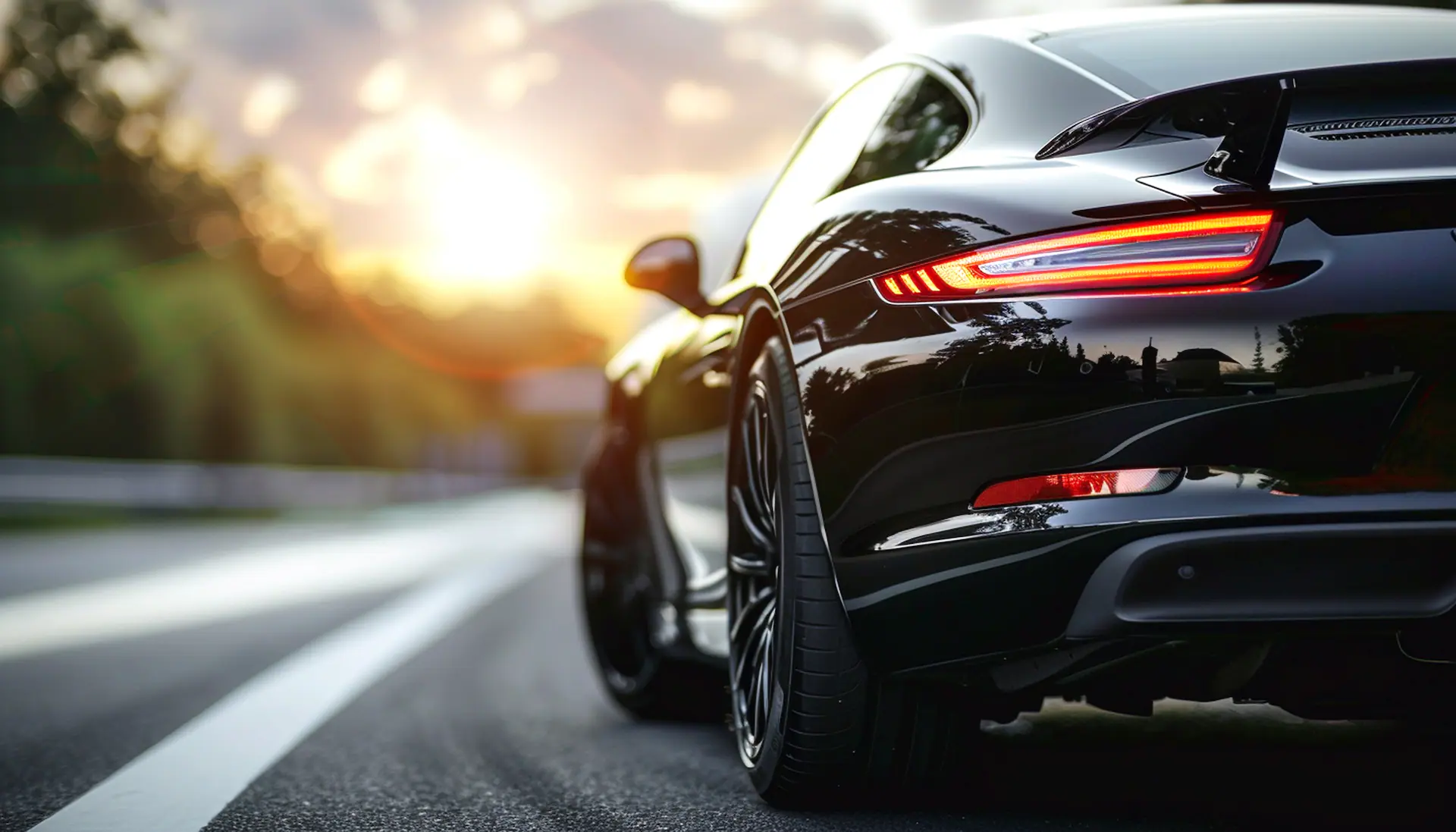 Original · 5800 KB (6067 × 3467 px)veoimg · 80 KB (1920 × 1097 px)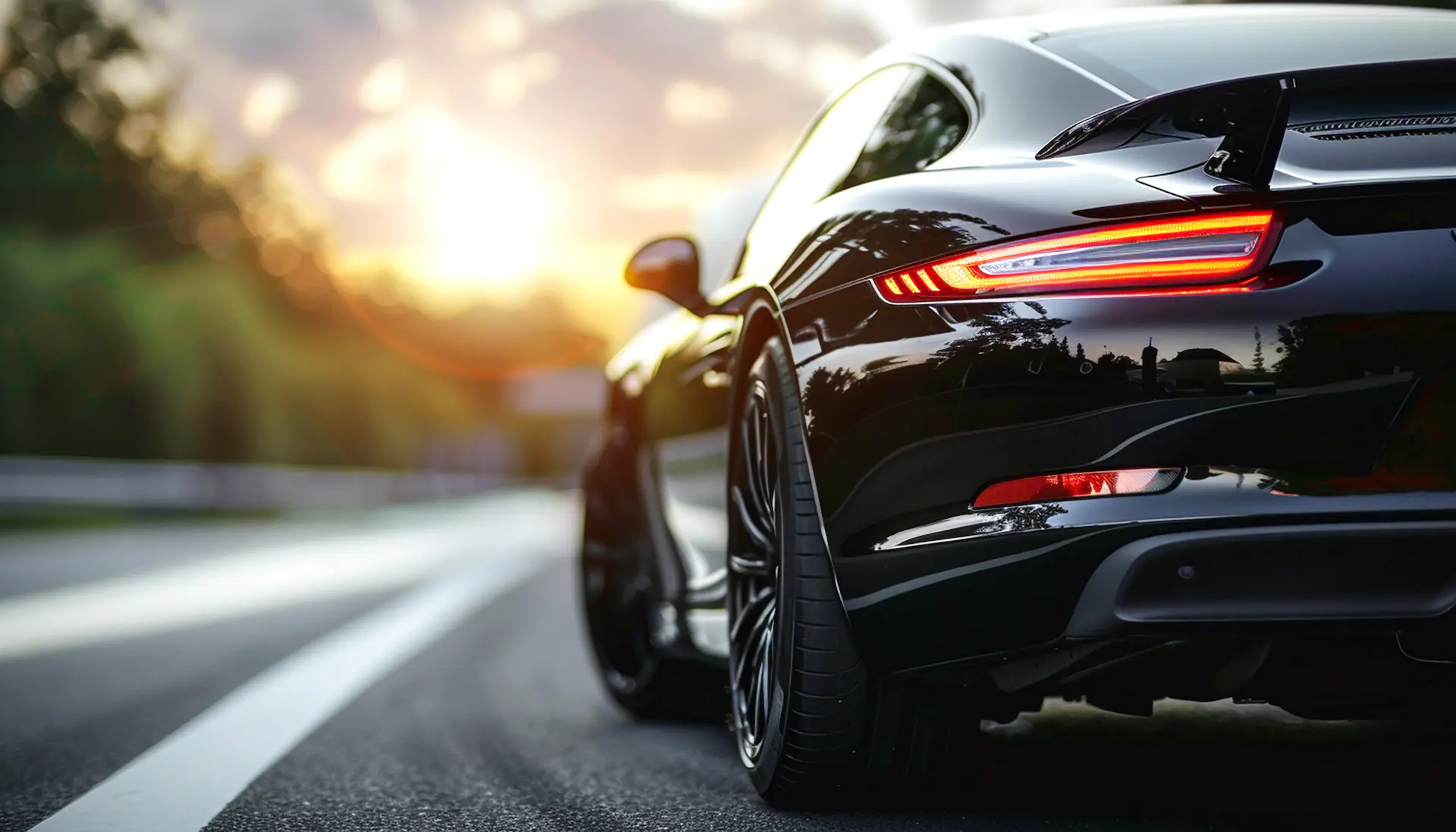
- Source JPG file
- 5800 KB
- Resulting WebP file
- 80 KB
- Smaller file size
- −98%
A 6067 × 3467 px image, scaled to 1920 × 1097 px and compressed to WebP by veoimg. Results depend on the image content, its source format and the settings you choose.
Privacy
Your files stay on your device
Compression is done by WebAssembly codecs running locally in your browser. Images are never sent to an external service or stored after you finish.
 No image uploads
Your device
Source files and results live only in the memory of the current tab. Closing or reloading the page clears them from the tool.
A typical online compressor
External server
Services that process images remotely must first receive your files and then send the results back. That usually comes with limits on size, file count or waiting time.
FAQ
Frequently asked questions
Do my images get sent to your server?
No. Images are processed locally by WebAssembly codecs running in your browser. Neither the source files nor the results are sent to an external service.
Is there a limit on the number or size of files?
The tool imposes no limit. How many files you can process at once depends on your device's available memory and performance.
Does compression remove EXIF data, including GPS location?
Yes. The output file is built from image data, so EXIF metadata - GPS coordinates included - is not carried over. Image orientation is applied while the file is read.
Will I lose transparency?
WebP, AVIF and PNG all support transparency. JPEG has no alpha channel, so transparent areas are filled with white.
Why is PNG not always smaller after compression?
PNG uses lossless compression and works best for graphics with flat colours. For photographs, WebP or AVIF usually gives a better result. If the output would be larger, veoimg keeps the source file instead.
Can I upload HEIC photos from an iPhone?
Not at the moment. The tool does not process HEIC files because browser support for them is limited. On an iPhone you can choose Settings → Camera → Formats → Most Compatible to save new photos as JPEG.
Does the tool work on a phone?
Yes. The interface supports touch devices, though processing many large photos will take longer and use more memory than on a computer.
Can I use veoimg for commercial work?
Yes. The tool is free to use, including for commercial material. Output files carry no watermarks.
Optimize your images before publishing
Add your files, pick the target size and format, then download the finished images.
Go to the tool